 Folio Launcher
Make your Android look like an iPhone
Eleven steps, one free app, no ads and nothing to subscribe to. It takes about ten minutes, and undoing it takes two taps.
Before you start
Most guides for this are years old and send you to launchers that show ads, ask for a subscription to unlock the dock, or want an accessibility service for a single feature. Folio is free and open source, has no ads and no analytics, and everything below is in the app itself rather than five apps stitched together.
The steps
Install Folio
It is free, open source, and about 5 MB. Nothing else on your phone changes, and your current launcher stays where it is.
Make it your home app
Press Home, pick Folio, then Always. To undo the whole guide at any point, press Home and pick your old launcher again.
Pick a theme
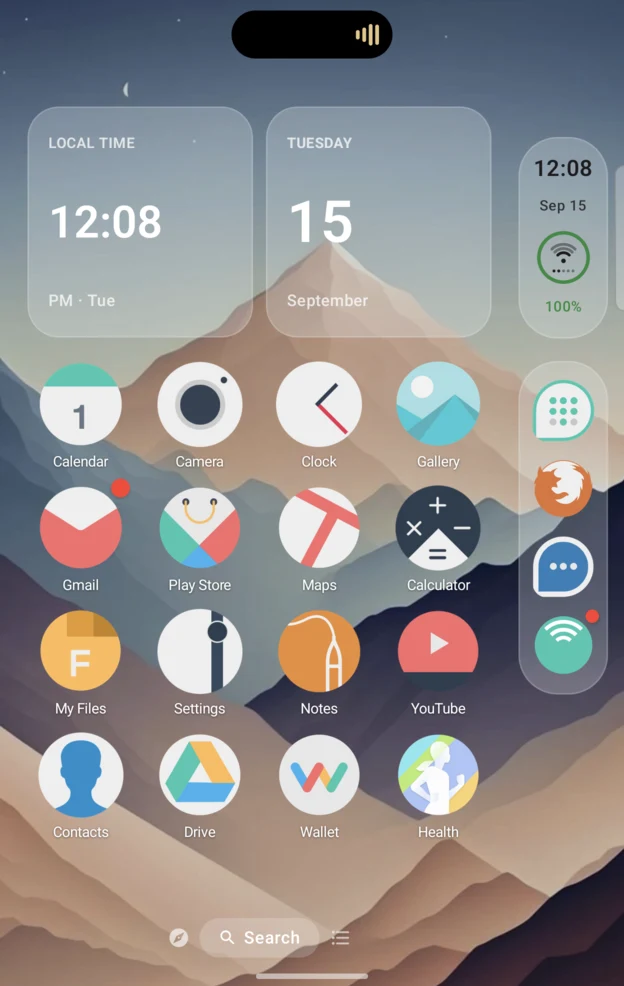
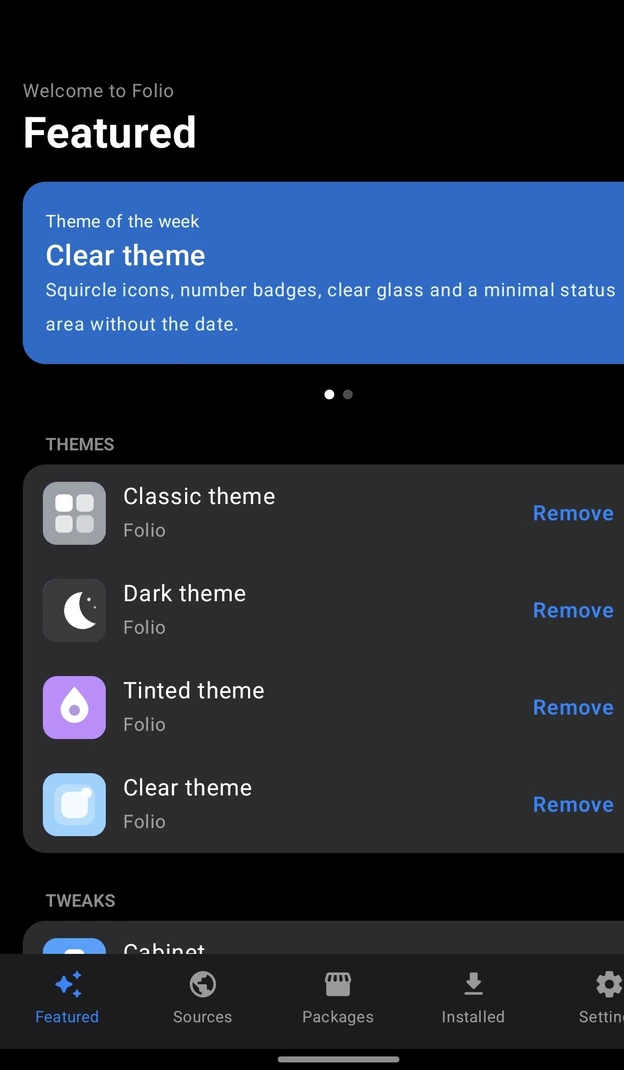
Folio ships Classic, Dark, Tinted and Clear. Clear is the closest to a current iPhone: squircle icons, number badges, clear glass and a minimal status area.
Turn on the Side Bar
The time, battery and dock along the edge, with a Dynamic Island that wraps the camera cutout instead of pretending it is not there.
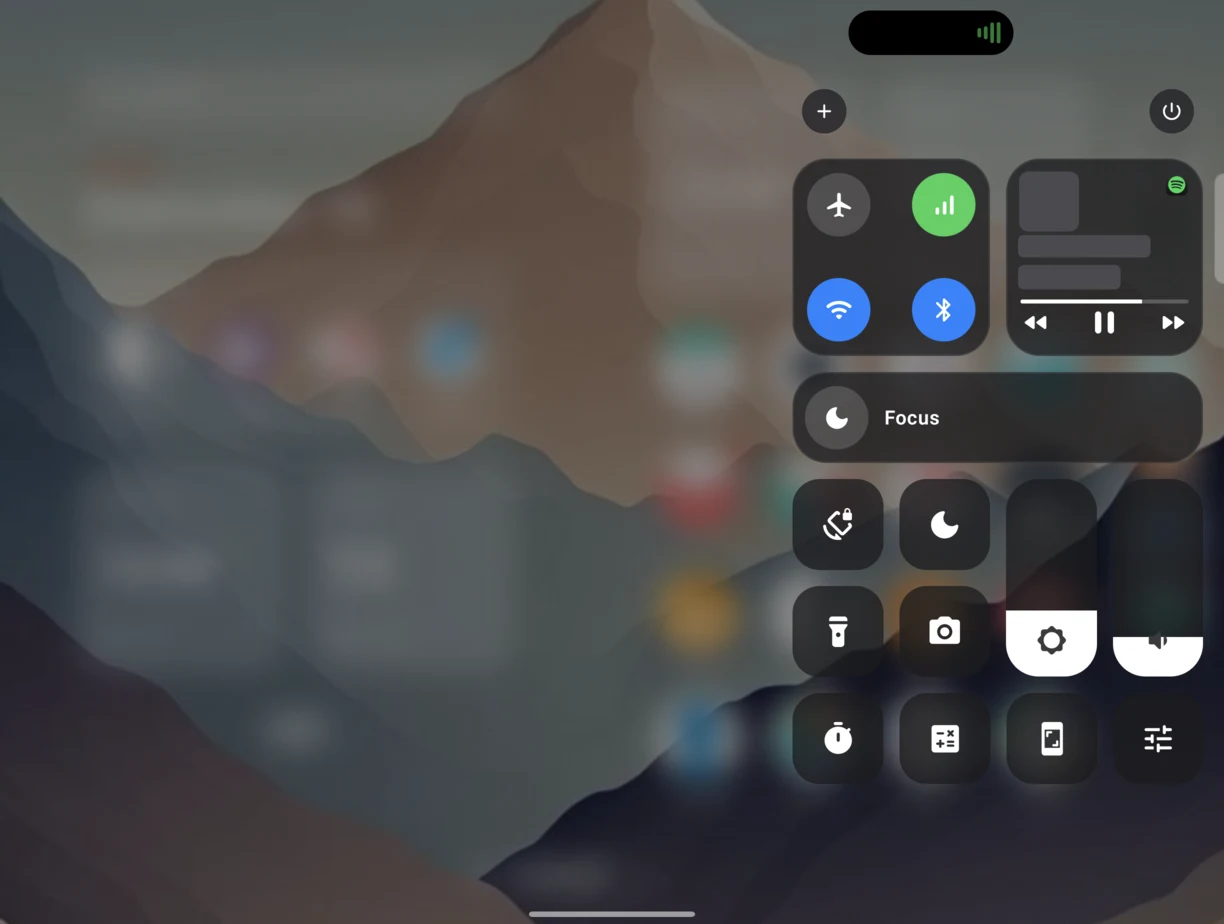
Set up Control Center and Notification Center
Both are in Folio. Turn on the gestures service if you want them from the top corners the way iOS does it, rather than Android’s shade.
Add Today View and widgets
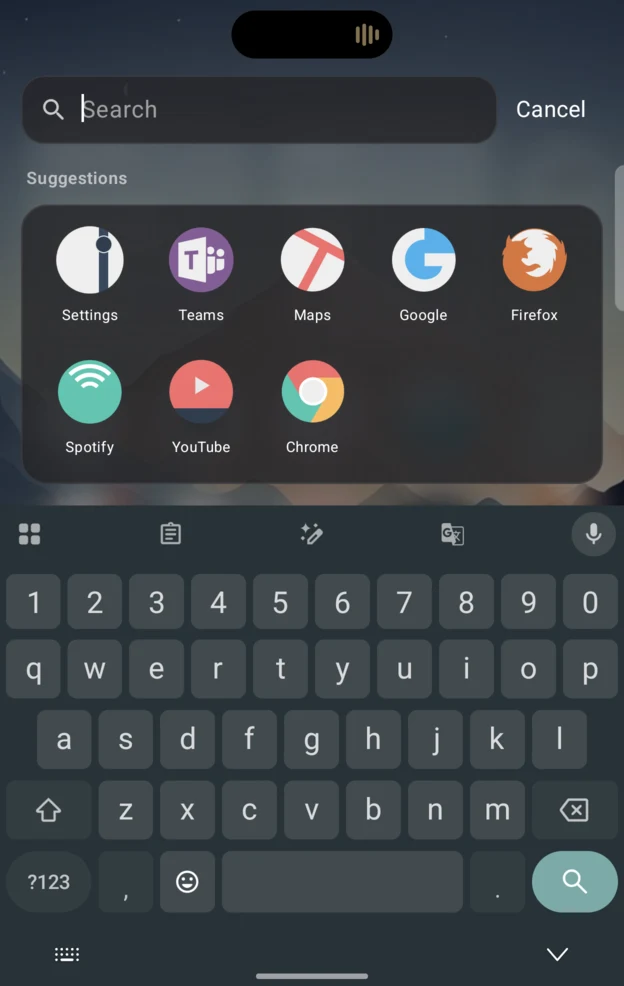
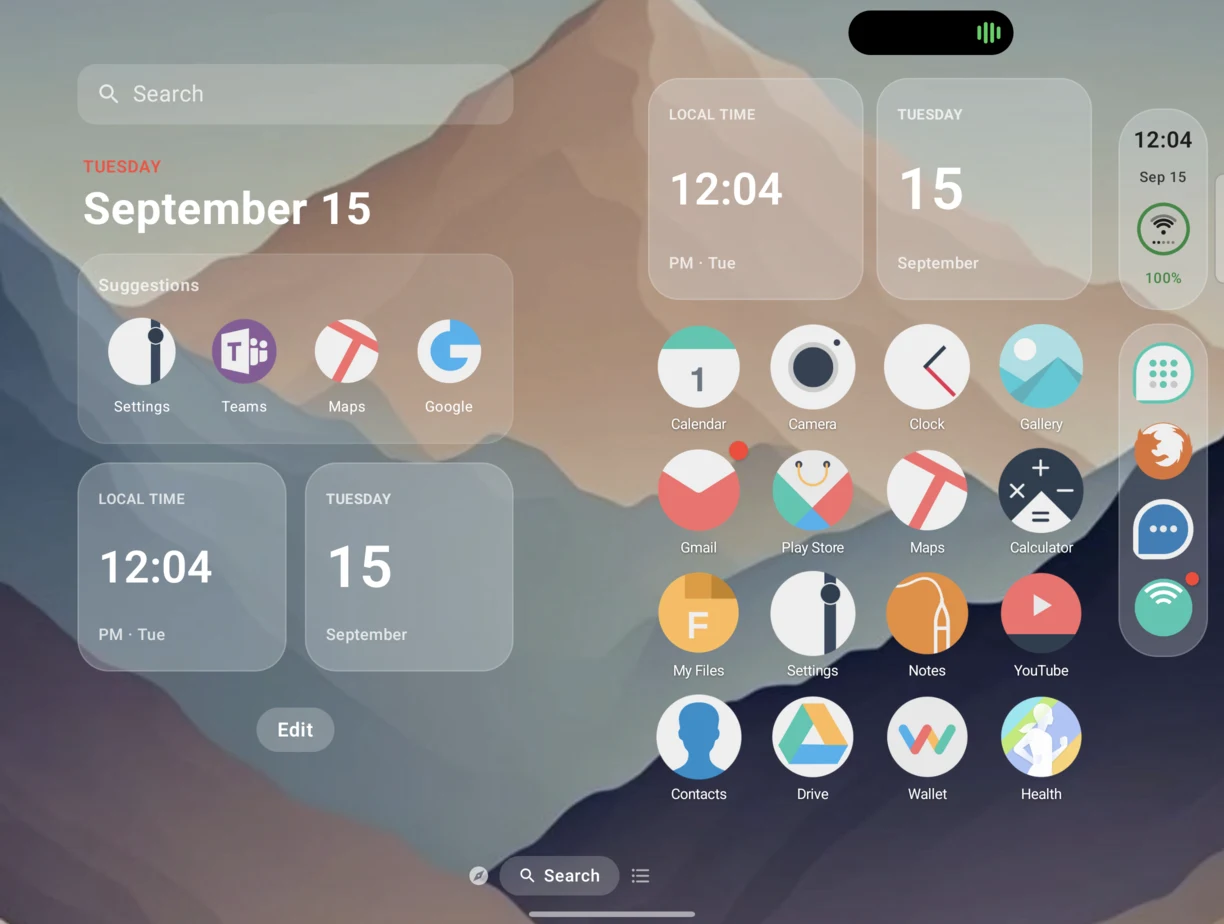
Swipe right from the first page for search, Suggestions and widgets, including Smart Stacks that rotate through the day.
Learn Spotlight
Swipe down on Home. It searches apps, contacts and settings as you type, and a renamed app answers to what you called it.
Sort the App Library
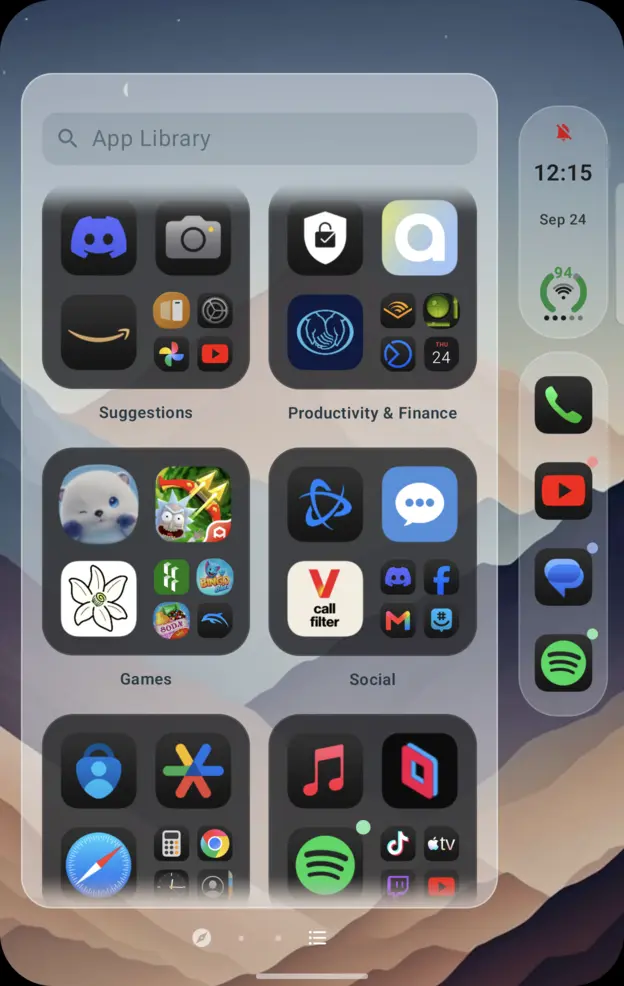
Every app grouped automatically, with search, so Home holds only what you want to look at.
Use folders and Icon Stacks
Folders behave like iOS folders. Icon Stacks put several apps in one slot, after the Apex tweak.
Set a Focus
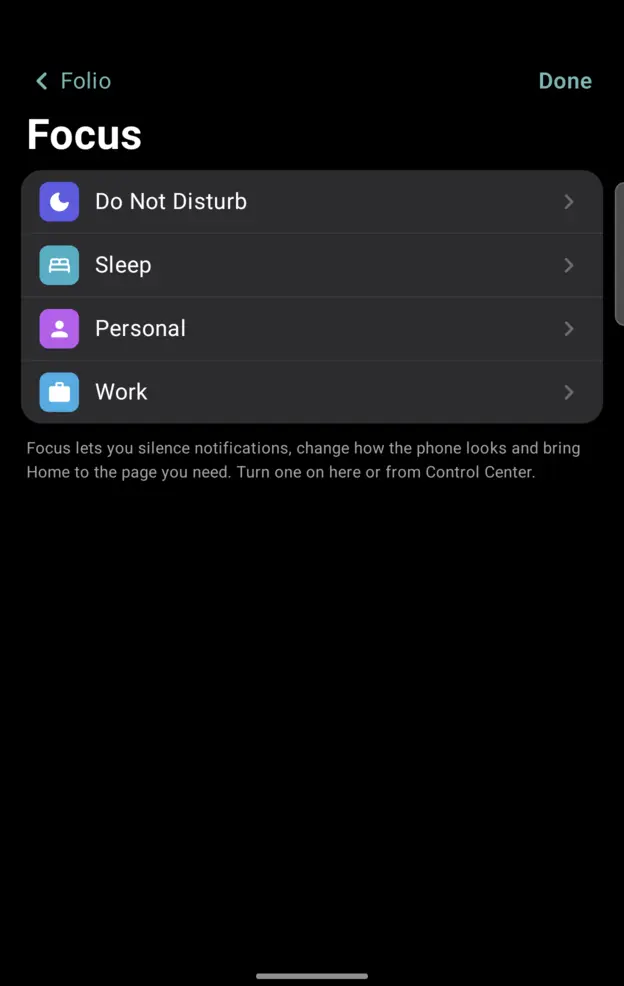
A Focus can hide pages and change what you see, on a schedule, the way iOS does.
Add the tweaks you want
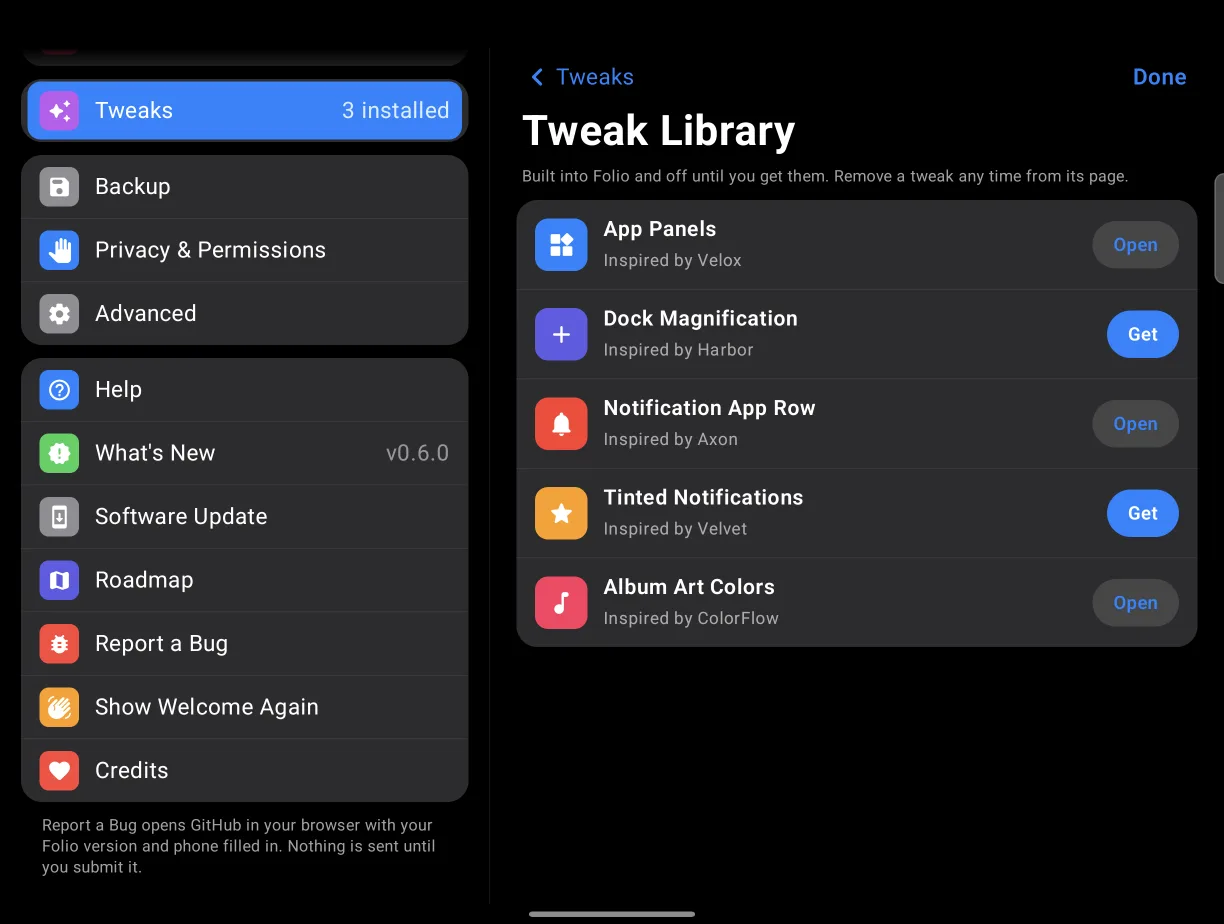
Cabinet for app panels, Harborline for a dock that swells under your finger, Palette for tinted notifications. Take the ones you like and skip the rest.
What it looks like unfolded
If your phone folds, the layout changes with it: two Home pages side by side, Today View beside Home, and nothing sitting on the crease. Folio is developed on a Galaxy Z Fold8.
What you cannot replicate, honestly
Android is not iOS, and a guide that pretends otherwise wastes your evening. These are the real limits, taken from Folio's own list of them.
The lock screen stays Android’s
No launcher can replace it. Folio’s Lock Cover appears after you unlock, not before.
The status bar stays put in other apps
Android will not let one app reserve space inside another, so the Side Bar’s status lives on Home. The Dynamic Island and dock can float over other apps if you turn on Folio’s gestures service.
Pull-down panels need the gestures service
Opening Notification Center and Control Center from the top corners uses Folio’s accessibility service. Without it, Android’s own shade opens instead.
Apps look like themselves
A launcher changes the home screen, not what is inside Gmail or Chrome. Anyone promising an iPhone look inside every app is selling something.
No iMessage, and no App Store
Those are Apple services, not a look. Nothing on Android brings them over.
One Samsung note: set Settings › Display › Continue apps on cover screen to Always, or folding from Home locks the phone.
Going further
Save your look as a theme file and share it, or take one from the Market. Thethemes folder has an example to start from, andthe tweaks page lists what else you can add.
Ten minutes, and undo is two taps
5.1 MB, Android 12 and up. Press Home and pick your old launcher whenever you want it back; your layout there is untouched.